Retrieve Your Seed Phrase from IOMe
If you previously signed in to Voyage using Login with IOMe, you can recover access to your Voyage account by retrieving your seed phrase from IOMe and importing it into MOI Wallet. Your Voyage account is tied to your moi_id, which is derived from the same seed phrase — so restoring the wallet with that phrase lets you sign back in to the same account.
Security warning: Your seed phrase grants full control over your wallet. Never share it with anyone. Voyage will never ask for your seed phrase — only import it inside the official MOI Wallet app or extension.
Overview
| Step | Action |
|---|---|
| 1 | Sign in to your IOMe account |
| 2 | Open Settings from the IOMe home page |
| 3 | Copy your Security Recovery Phrase (seed phrase) |
| 4 | Choose Import an existing wallet in MOI Wallet |
| 5 | Click Login on Voyage and connect via Browser extension or Mobile wallet |
Step 1 — Sign in to IOMe
- Go to https://iome.ai/login/.
- Enter your IOMe account credentials and sign in.
Make sure you use the same IOMe account that was linked to your Voyage profile.
Step 2 — Navigate to Settings
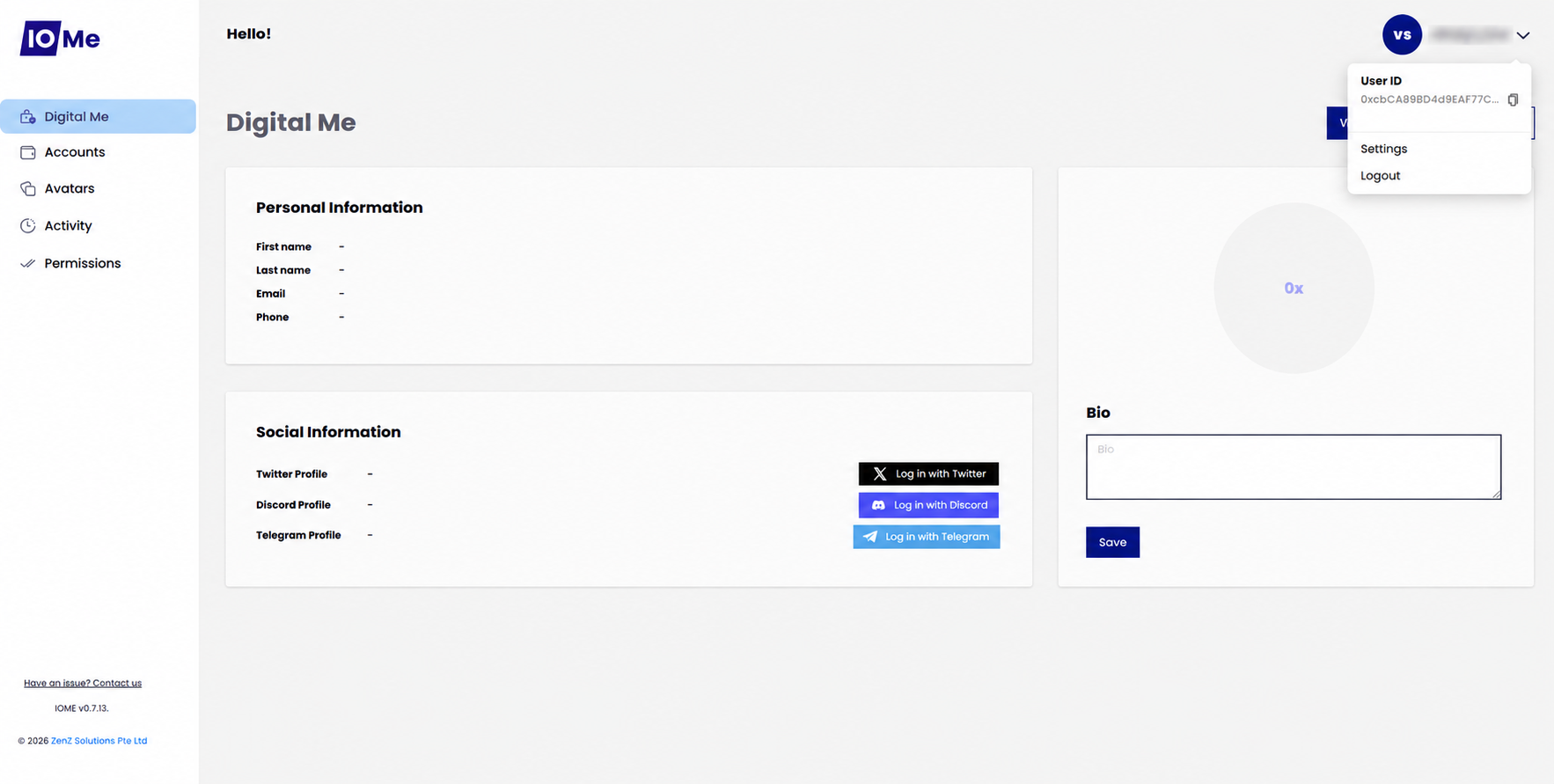
After a successful login, you will land on the IOMe home page (Digital Me).
- In the top-right corner, click your profile menu (your initials or avatar).
- From the dropdown, select Settings.
Step 3 — Copy your seed phrase
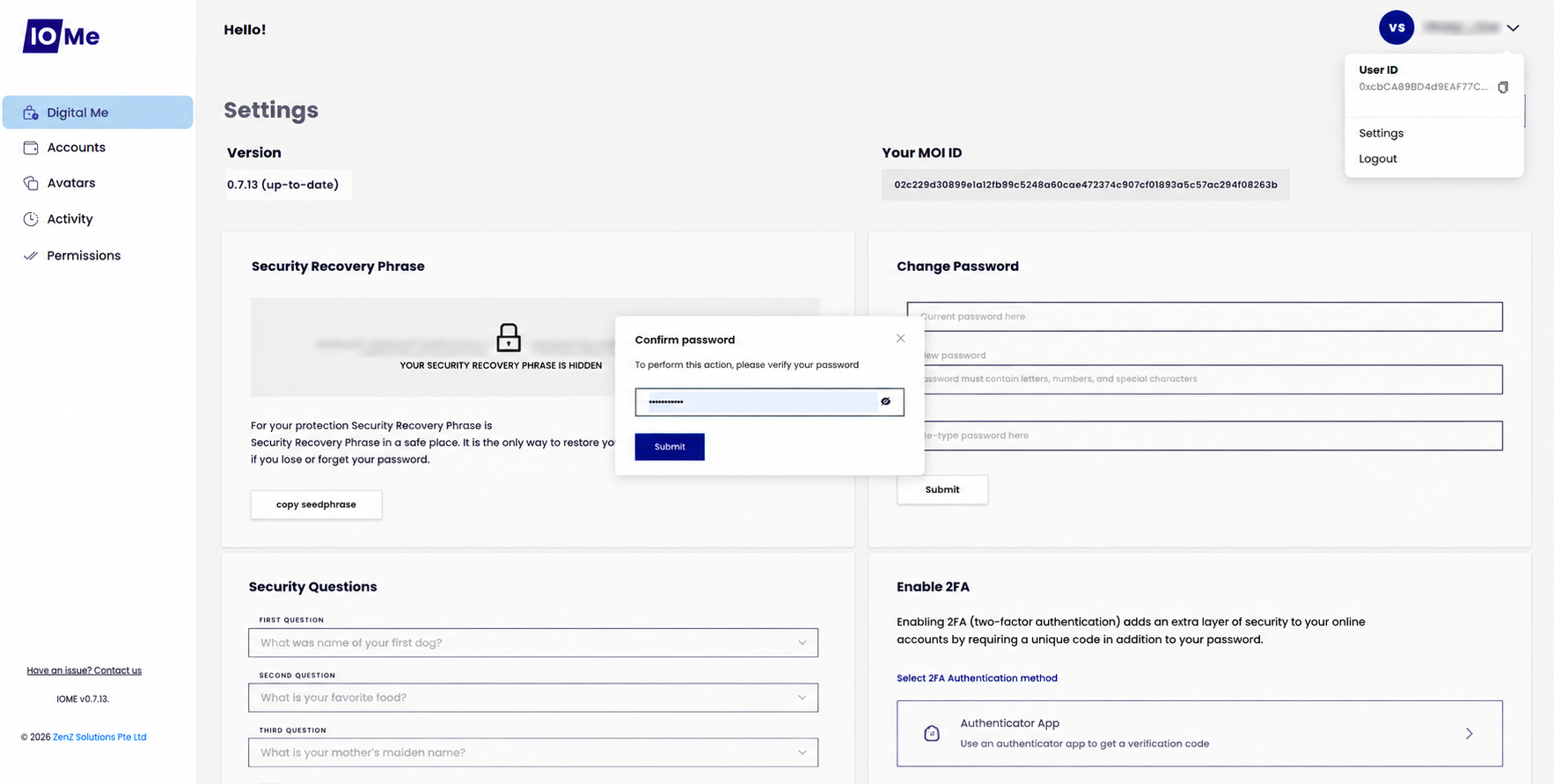
On the Settings page, locate the Security Recovery Phrase section.
- Click copy seedphrase.
- IOMe will prompt you to Confirm password — enter your IOMe account password and click Submit.
- After successful verification, your Security Recovery Phrase (seed phrase) is revealed. Copy it and store it somewhere safe and private.
Write down or copy your seed phrase only in a secure, private location. Do not store it in screenshots, chat messages, or email. Anyone with your seed phrase can access your wallet and Voyage account.
Step 4 — Import your seed phrase into MOI Wallet
- Install MOI Wallet from the official download page if you have not already.
- Open MOI Wallet and choose Import an existing wallet.
- Enter the seed phrase you copied from IOMe.
- Complete the wallet setup and unlock your wallet.
For detailed instructions, see the MOI Wallet import guide.
Step 5 — Connect your wallet to Voyage
- Open Voyage.
- Click Login in the top navigation.
- In the Connect MOI Wallet modal, choose Browser extension or Mobile wallet, then approve the connection in MOI Wallet.
- Select the account you want to use, then click Sign & Authenticate and approve the request in your wallet.
If the imported wallet resolves to the same moi_id as your previous Voyage account, you will be signed back into your existing profile.
For the full Voyage sign-in flow, see the Voyage Login Guide.
Troubleshooting
| Issue | What to try |
|---|---|
| Cannot sign in to IOMe | Verify your email and password at https://iome.ai/login/. Use IOMe's password recovery if needed. |
| Password verification failed | Re-enter your IOMe account password carefully. The seed phrase cannot be revealed without successful verification. |
| Voyage shows a different account | Confirm you imported the same seed phrase from IOMe. A different phrase produces a different moi_id. |
| MOI Wallet not detected | Install MOI Wallet from the official download page and refresh Voyage. |